Killer Drone
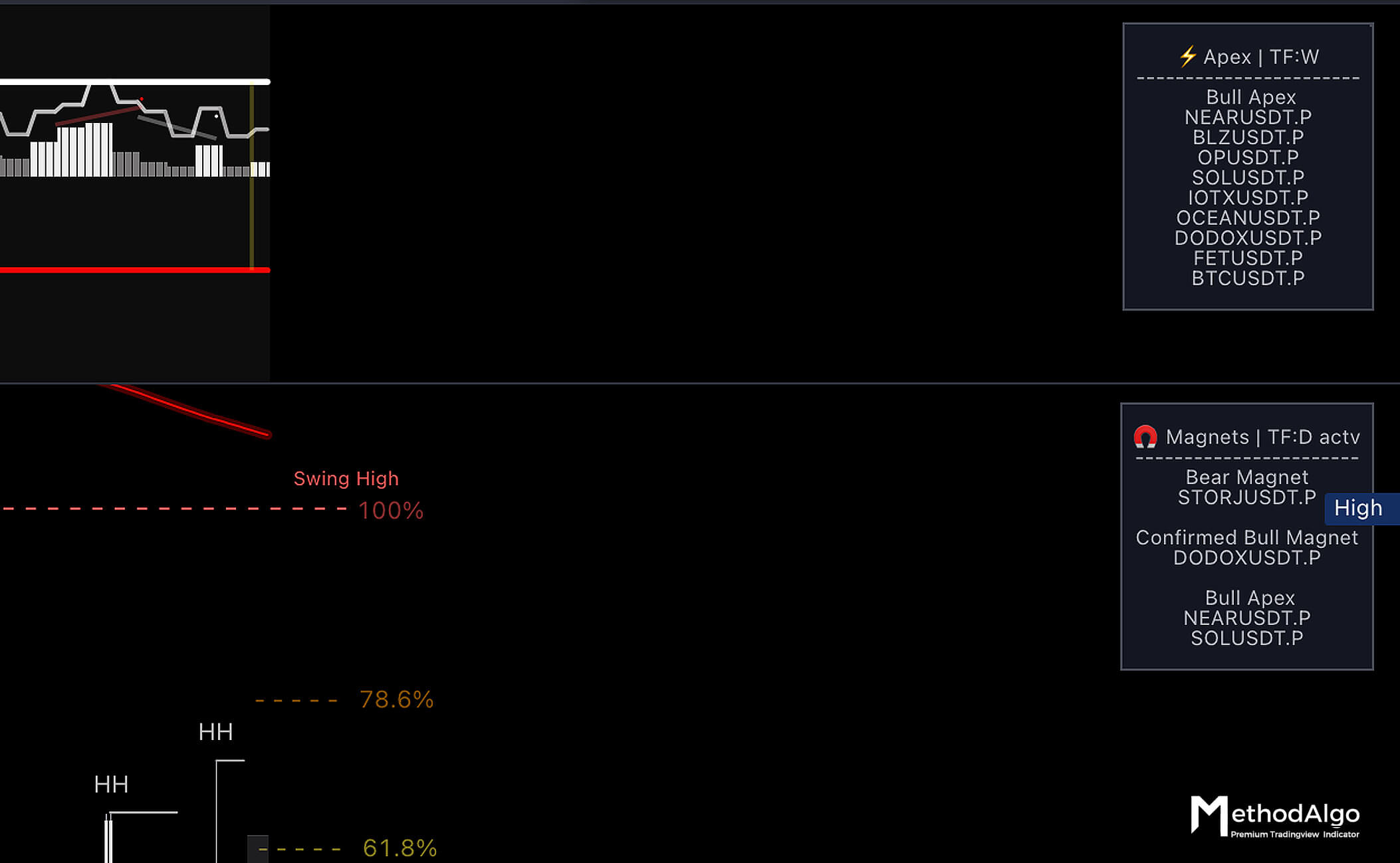
The Killer Drone indicator has been sunset at 25/9/12 and is no longer updated or maintained. It is now provided for free. If needed, please go to the ``#legacy-indicator` channel in the Discord terminal to add it yourself.
Discovering and Filtering Opportunities
Killer Drone is a monitor indicator that does not directly generate trading signals. It can be attached as a small panel to any of the four corners of your chart, allowing you to filter and monitor the status of up to 25 selected trading pairs in real-time, down to the second. It tracks the status of Apex and Magnet Blocks. Traders can create customized monitoring lists and desired timeframes by combining different configurations or adding multiple KillerDrones.
Since Magnet Blocks and Apex are most effective during their initial phases, using the KillerDrone helps traders get real-time status updates on the 25 pairs being monitored by each drone without the need to switch between charts. For more information on how to trade these signals, please refer to the linked documentation.
Applications
- Monitoring trading opportunities across multiple trading pairs.
Interface
Killer Drone is a panel indicator and is by default located in the top-right corner of the chart (position is customizable).
TF: Monitoring timeframe, all displayed in minutes (e.g., 15 for 15m, 60 for 1h, 240 for 4h, etc.).actv: Indicates whether the drone's configured timeframe matches the current chart's timeframe.
Adding Multiple KillerDrones
Each Killer Drone can monitor up to 25 assets under a custom timeframe. If traders need to monitor multiple timeframes or more assets, they may need to add multiple KillerDrones. A maximum of four KillerDrones can be added, one in each corner of the chart.
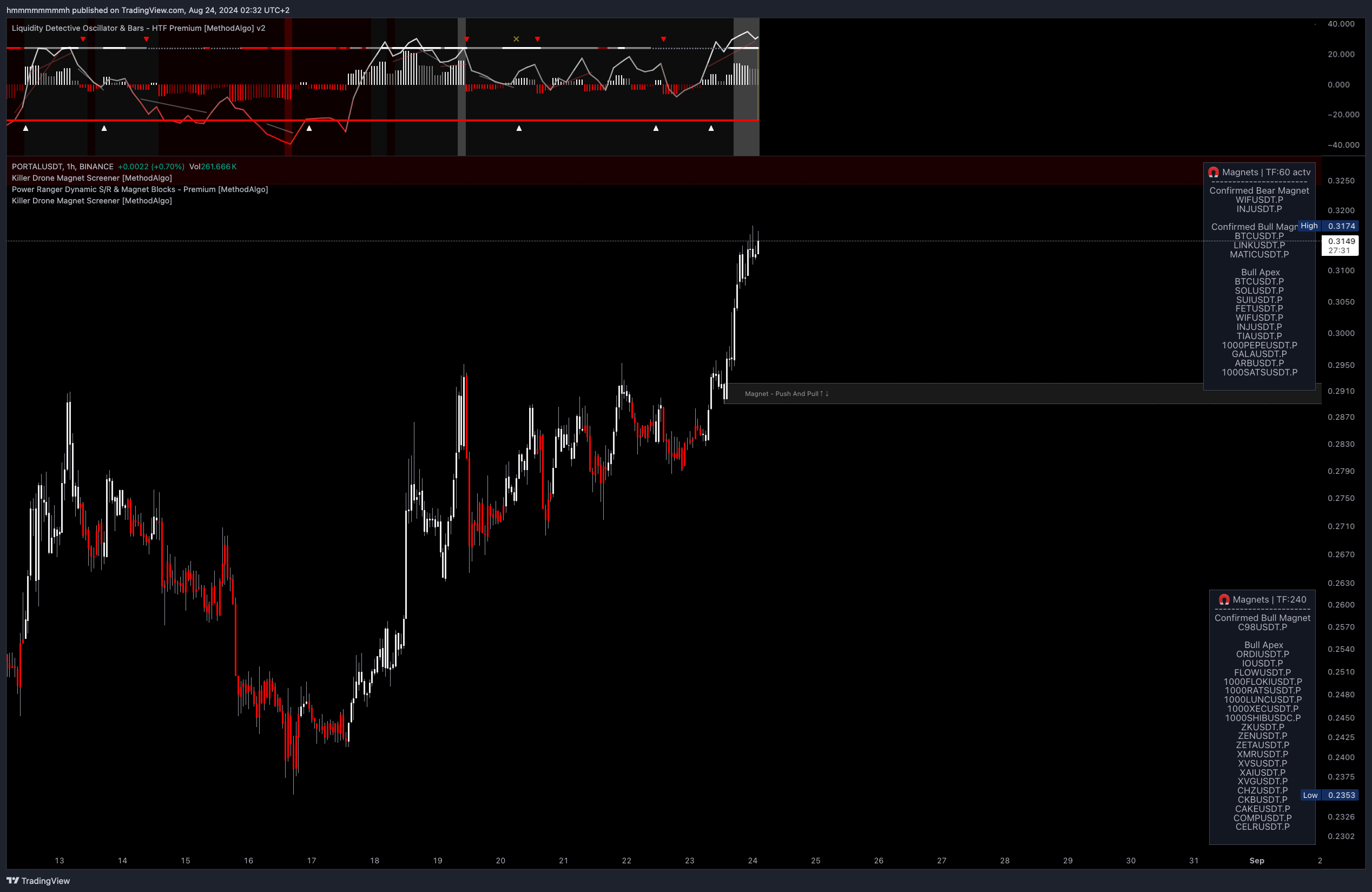
In the example below, two KillerDrones are added:
- Top-right corner: Monitors the
chart timeframefor Magnet and Apex status. This drone updates according to the current timeframe of the chart which is the dynamic option. - Bottom-right corner: Monitors the
4-hour timeframefor Magnet and Apex status. This drone only monitors the 4-hour timeframe, regardless of any changes to the chart's timeframe.
Replacing the Built-in Apex Filter in Liquidity Detective
The Liquidity Detective indicator comes with an in-built Apex filter. Since Liquidity Detective is a core indicator and frequently updated, you would need to reset the filter asset list after each update. To avoid this, traders can replace the built-in Apex filter with the KillerDrone.
Replacement Steps
- Click the gear ⚙️ button next to the Liquidity Detective name to open the settings panel, and turn off the
Apex Screeningfeature under theFeaturescategory. - Add a KillerDrone.Then, click the "
..." button on the right, and under theMoveoption, selectMove to Existing Pane Above(if your Liquidity Detective is at the bottom of the chart, selectMove to Existing Pane Below). This will move the KillerDrone panel into the Detective's pane. - Click the gear ⚙️ button next to the KillerDrone name to display the KillerDrone settings.
- Enable the
Match LD's Autopilot TFoption in the KillerDrone settings, and keep the time period set toChart. - Continue configuring the KillerDrone's asset list.
- Finally, don't forget to save the layout; otherwise, the indicator configuration won't be saved.
- The Liquidity Detective defaults to using the
AutopilotTFfeature, which automatically adjusts the Detective's data timeframe according to the current chart's time frame (e.g., if you're viewing a 15m chart, the Detective's data frame might actually be set to 45m). TheMatch LD's Autopilot TFoption in the KillerDrone aligns the drone's timeframe with that of the Liquidity Detective whenAutopilot TFis enabled andScreeningTFis set toChart. - When
Match LD's Autopilot TFis enabled, the KillerDrone will not filter Magnet Blocks. - Only enable this option when configuring the KillerDrone to replace the Detective's built-in Apex filter; otherwise, you won't be able to confirm which time frame the drone is filtering.
Parameter Settings
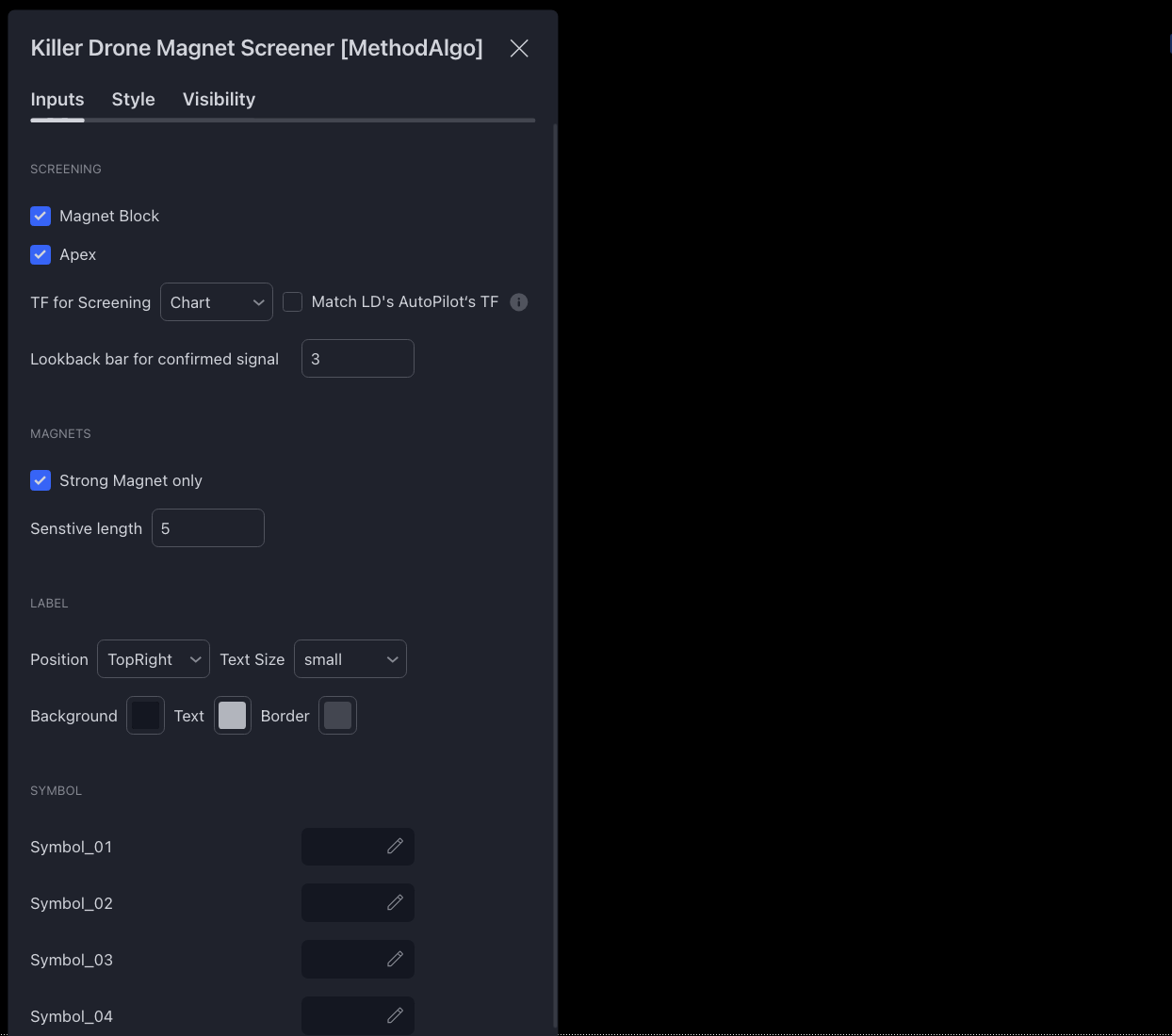
Screening: Choose the signals to monitor, Magnet Blocks and Apex.TF for screening: Customizable timeframe for monitoring.Match LD's Autopilot TF: Enable only when replacing the built-in Apex filter in Liquidity Detective to align with the Detective's auto data timeframe.Lookback for confirmed signal: Determines how many candles after a signal is generated it will remain visible on the panel.Strong Magnet: Enable to filter out weaker magnets.Sensitive: Sensitivity of magnet monitoring.Position, Text Size, Color: Position of the panel, text size, and color.Symbol01-25: Customize the assets to monitor.
Remarks
- You can add multiple KillerDrones to filter Apex and Magnet signals across different timeframes or more trading pairs.
- The core Liquidity Detective indicator includes a built-in Apex filter with the same algorithm as the KillerDrone. However, using the KillerDrone independently allows you to avoid resetting the asset list every time the Detective is updated.
- KillerDrone is not a core indicator and is recommended for paid TV members, as it consumes valuable indicator slots (the free TV user slot limit is two, but TV members have more slots available).
- We will continue to optimize KillerDrone and add more opportunity signals for traders to filter.
The engineers at MethodAlgo are proud of their work, but it's essential for you to understand that no indicator / algorithm can guarantee perfect success. Trading profits and losses are greatly influenced by the trader's psychology, knowledge, experience, and risk management.
The algorithmic interfaces we provide are all part of T.A.T.A. When trading in reality, traders should make their decision like T.A.T.A, considering various factors and signals from other tools to establish confluence system.
Any unclear explanations or errors in this tutorial? Please contact MethodAlgo's @Staff on the Discord Trading Terminal for corrections.